Configure macOS profiles
First, you must generate an Apple profile using the third-party apps mentioned in the Generate Apple profile section. Then, upload the profile to KACE Cloud and apply it to an enrolled macOS device.
These profiles can change several settings on a device including the following,
- control and restrict the functionality of applications
- automatically grant access to the macOS privacy sections
- automatically approve kernel extensions
Generate Apple profile
There are two free third-party apps that can generate Apple profiles to be uploaded to KACE Cloud and applied to enrolled devices. When creating an Apple profile, review the documentation on the desired options and verify the profile works as expected on a test device before deploying to any company devices.
- iMazing Profile Editor is available in the macOS App Store. Note that signed Apple profiles cannot be uploaded to KACE Cloud.
- ProfileCreator is an open source app that may require Apple’s Xcode development environment to create a working version.
|
|
NOTE: Quest Software is not affiliated with either of these apps. If you require technical support for these apps, contact the app vendors. |

Add profile to Library
In KACE Cloud, to add a profile to Library,
- Go to Libraries > Vendor Profiles.
- Click + Add New button, then select Apple Profile.
- Browse or drop the newly generated profile into upload section.
-
Click Add.
The profile gets added to the Library.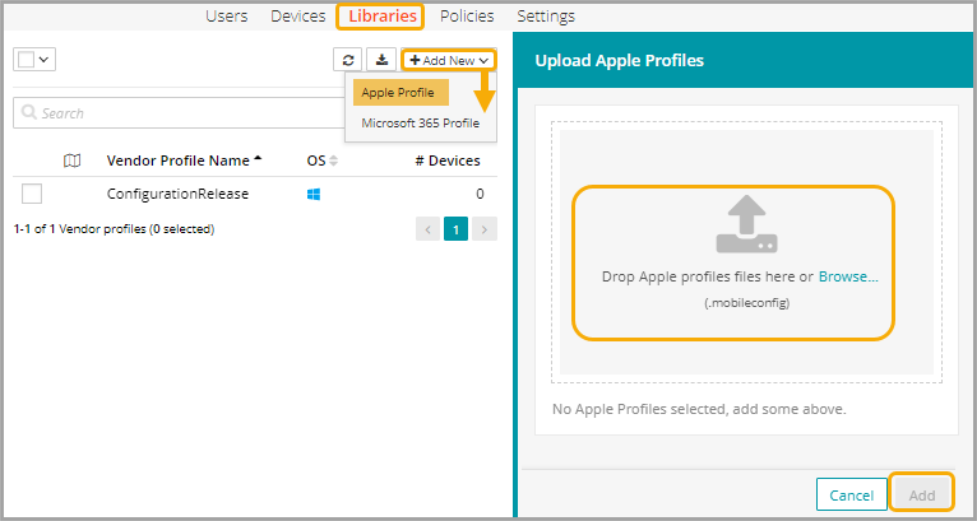
Deploy profile from Library to device
- Go to the Devices tab.
- Select one or more macOS device names from the list.
- In the right panel, choose Vendor Profiles.
- Click +Add.
- Select the From Library tab.
- Select existing profile(s) from the list, then click Apply to Device.
Deploy profile from Library to device using policies
- Select the Policies tab in top navigation.
- Complete one of the following steps:
- To create a policy, click Add New.
- To edit an existing policy, click the policy to open the policy details.
- In the Applies To section, select one or more labels associated with target devices. For more details about labels, see Using labels to group similar items.
- In the right pane, in the Resources tab, click Add Resources to open the drop-down list, and then click Vendor Profiles to open a dialog.
- Slide the Link toggle to link/unlink the Vendor Profile.
- To link the Vendor Profile to policy, slide the Link toggle to right. The color of the toggle changes to green indicating the resource is linked.
- To unlink a previously linked Vendor Profile, slide the Link toggle to left. The color of the toggle changes to red indicating the resource is unlinked.
- (Optional) In the Options column, click the icon to open Resource Options dialog. Select one of the following Compliance Type:
- Include - Select this option to include the resource when determining the compliance status.

NOTE: By default, all the Resources in a policy are included in compliance checks.
- Exclude - Select this option to exclude the Resource when determining the compliance status.
- Include - Select this option to include the resource when determining the compliance status.
- Click Add Resources to associate the item to the policy. You can view the resource in the Resources pane.
- Click Push Resource to deploy the added resources to the target devices or users.
For more information about policies, see Using policies to manage device configurations.
View profile details
- Go to the Devices tab.
- Select one or more macOS device names from the list.
- In the right panel, choose Vendor Profiles.
- Select a profile name from the list, then click View Details.
Remove profile from Library
- Go to the Libraries tab.
- Click the Vendor Profiles icon.
- Select one or more profile names from the list.
- In the right panel, click Remove.
The profile is removed from the library and from the devices to which it has already been deployed.
Remove profile from device
- Go to the Devices tab.
- Select one or more macOS device names from the list.
- In the right panel, choose Vendor Profiles.
- Select a profile or profiles, then click Remove.
If a combination of library profiles and non-library profiles are selected for removal, an error message appears, indicating that the non-library profiles are protected and cannot be removed by this action.